
Terminal UI
mold includes an interactive terminal UI for browsing models, tuning parameters, generating images with live progress, and previewing results; all without leaving the terminal.
Built on ratatui with Kitty graphics protocol support for pixel-perfect image preview in terminals like Ghostty, kitty, and WezTerm. Falls back to halfblock rendering in other terminals.
Beta
The TUI is under active development. Core generation, script-mode video authoring, model management, gallery, settings, theming, and image preview work well.
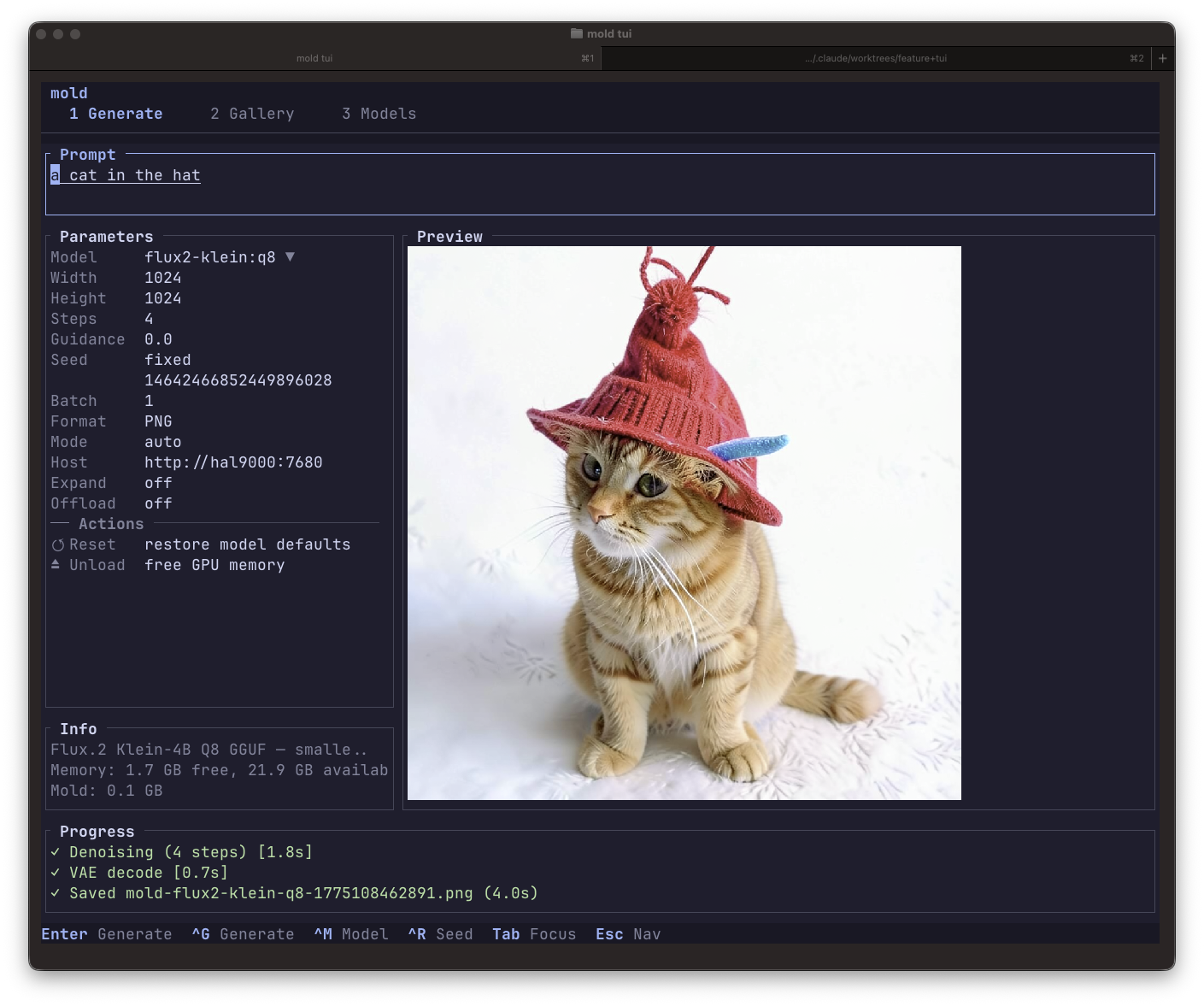
Quick Start
mold tuiThe TUI launches in the Create workspace with your cursor in the prompt field. Type a prompt, press Enter, and watch the progress panel as your image generates. The result appears in the Preview panel and is saved to ~/.mold/output/.
TIP
The tui feature must be compiled in. Pre-built releases and the Nix package include it by default. If building from source, add --features tui to your build command.
Auto-Start Server
By default, mold tui automatically starts a background mold serve process if no server is already running. This keeps models hot between generations for faster subsequent runs. The server is killed when you quit the TUI.
mold tui: auto-starts server onlocalhost:7680mold tui --local: skip server, use local GPU onlymold tui --host http://gpu:7680: connect to an existing remote server
Server Logs
When the TUI auto-starts a background server, logs are written to ~/.mold/logs/ with daily rotation. This is useful for debugging generation failures since the server's stderr is suppressed while the TUI controls the terminal.
Log files follow the naming pattern mold-server.YYYY-MM-DD.log and are automatically cleaned up after 7 days (configurable via logging.max_days in ~/.mold/config.toml). The TUI writes its own file-only log beside it as mold-tui.YYYY-MM-DD.log, because it owns the terminal and cannot log to stderr.
To view live logs while the TUI is running, open a second terminal:
tail -f ~/.mold/logs/mold-server.$(date +%Y-%m-%d).logYou can also enable file logging for manual mold serve with --log-file, or permanently via the config file:
[logging]
level = "info"
file = true
# dir = "~/.mold/logs"
# max_days = 7
Workspaces
The TUI shares the five Mold Studio workspaces with the desktop, web, and iPhone apps, shown as tabs at the top of the screen:
| Workspace | Key | Purpose |
|---|---|---|
| Create | 1 | Write prompts, tune parameters, generate images/video |
| Library | 2 | Browse prints from this machine and every known host |
| Models | 3 | View installed and available models |
| Machines | 4 | Connect remote Mold hosts, telemetry, queue, target |
| Settings | 5 | Theme picker plus file-backed and DB-backed settings |
Switch workspaces with Esc then 1–5, or click the tabs. Alt+1–Alt+5 works from anywhere, and Esc from any other workspace returns to Create.
Command Palette
Ctrl+K opens the command palette from any workspace or focus; the TUI's version of the GUI surfaces' ⌘K launcher. Type to filter, Up/ Down to select, Enter to run, Esc to close. It covers navigation (all five workspaces), actions (toggle Advanced, connect a machine, randomize seed, expand prompt, retry held prints, prompt history, help, quit), and switching between all ten theme presets.
Create View
The main workspace with four panels:
- Prompt: Multi-line text area (Shift+Enter for newlines, emacs keybindings). Required, except for an LTX-2 model that already has a source image attached, where an empty prompt is accepted and prompt expansion is skipped for that run. Legacy LTX-Video is text-to-video only in Mold and rejects source-image conditioning
- Parameters: six essentials rows for an image model — plus Duration (and Predict duration where the model advertises duration prediction) for a video model — followed by the Advanced accordion
- Preview (idle hint; while generating, the latest live latent preview frame (for families that stream denoise previews) FLUX.1, Flux.2, Z-Image, and Wan 2.1/2.2) with the denoise progress line beneath it; then the finished print with a
model · seed · time · hostcaption (Kitty/sixel/halfblock rendering).MOLD_STEP_PREVIEW=0disables server preview streaming - Timeline: the glyph-styled session log (
•info,✓done with stage timings,!warning,✗error,★model loaded), including a✓ Saved <file>entry per print; shows "-- idle. no runs this session." until the first run. Hidden whentui.show_timelineis off or the terminal is too short.
The model's description is the dim line under the Model row; host and memory telemetry live in the Machines workspace and the chrome host chip.
Essentials
| Row | Shows | ◀▶ / +/- | Enter |
|---|---|---|---|
| Model | human-readable model name + description | -- | fuzzy model selector |
| Size | 1024 × 1024 | cycle aspect presets | type an exact WxH |
| Detail | ●●●●○○○○ 28 step dots | adjust steps | -- |
| Prompt strength | guidance | adjust | -- |
| Predict duration | on / off (video models that offer it) | toggle | -- |
| Duration | 5.0s · 121f (video models) | adjust on the frame grid | -- |
| Seed | random / fixed · 42 | cycle seed mode | type an exact seed |
| Batch | image count | adjust | -- |
Size's ◀▶ cycles the sizes the selected model's generation profile advertises; when the host advertises no profile it falls back to computed 1:1, 3:2, 2:3, 16:9, and 9:16 presets fitted to the model's default pixel area (64-aligned). With Predict duration on, the Duration row reads automatic · 1–20s and the server picks the clip length. Seed modes are random (new seed every run), fixed (reproducible), and increment (+1 per run); Ctrl+R still cycles them from anywhere.
Advanced accordion
Press A anywhere in Create (or Enter/→ on the ▸ Advanced row) to open the disclosure; Enter or → on a section expands it, collapsing any other, and ← collapses. Each collapsed section shows a summary (default, off, none, png, or the set value) and the header carries a count of advanced values that differ from their defaults. The open state and expanded section persist across sessions (tui.advanced_open / tui.advanced_section).
| Section | Rows |
|---|---|
| Scheduler & sampling | Scheduler (CFG models), Expand prompt, Offload |
| Negative prompt | inline editor (CFG models; Alt+N jumps here). Wan models prefill their tuned default; leave it for the default, edit to replace it, clear it to send an explicit empty negative |
| Source image | References, Source, Strength, Mask, ControlNet (per model) |
| Identity photo | Photo, Strength, Start step (only for a checkpoint the server advertises as identity-capable) |
| LoRA | LoRA path + scale |
| Upscale after generate | post-generate upscaler (Enter picks, (off) clears) |
| Output format | png / jpeg / gif / apng / webp / mp4 |
| Video | Frames, FPS; Wan Flow shift; LTX-2 Pipeline, Audio default/on/off, Spatial native/1.5×/2×, Temporal native/2×, STG scale/blocks, CFG rescale, Modality scale, Guidance skip |
| File under | Title, Tags, Collection: where the print lands in the Library |
The LTX-2 Pipeline row cycles through Auto, one-stage, two-stage, two-stage-hq, and distilled. Auto omits the request field so the server keeps checkpoint selection authority; each explicit recipe selects MP4 and is shown in the collapsed Video summary and Advanced badge. Guidance and the Negative prompt section follow the selected recipe's CFG contract. Pipelines that require an audio file, source video, keyframes, a retake window, or an IC-LoRA--and the audio-only t2a output--remain intentionally absent until the TUI can author and handle those inputs and outputs end to end.
For Wan models the Video section instead exposes Flow shift (the family's primary quality/character knob, request field sample_shift); it is absent until touched and never appears for other families. LTX-2's optional STG scale/blocks, CFG rescale, modality scale, and guidance-skip rows keep their request fields absent until edited, so pipeline constants stay authoritative.
Identity photo (PuLID)
The Identity photo section appears only while the selected checkpoint's /api/models[] entry advertises supports_identity; face-identity conditioning is qualified for a fixed list of FLUX and SDXL checkpoints (see the Identity Photos guide), on a server built with PuLID support. It is never inferred from the family or from how your local mold was compiled, because the render happens on the server.
Enter on the Photo row opens a path picker. The file is opened without following symlinks and bounds-checked (PNG or JPEG, at most 16 MiB encoded, 8192 px per axis, 32 MP) before it is accepted, so a bad path is refused in the picker rather than after your job has taken a queue slot. Leaving the field empty clears the photo. Strength moves in 0.1 steps across 0.0–3.0 (default 1.0) and Start step across 0–steps-1 (default 0), so the form cannot express a value the server would reject; lowering the step count pulls Start step back with it.
Switching to a model that cannot take the photo keeps it (the photo is your choice, and switching back must not have lost it) but shows the server's refusal on the Photo row and blocks Generate. That is deliberate: rendering silently without the face would produce a print that looks fine and is simply not the person you asked for. ↺ Reset to model defaults clears the photo and both knobs.
Prints that carried a face reference show Identity in Library Details and in the full print view: the photo's name, a short digest, the strength, and the start step. The face bytes themselves are never recorded.
The Audio row is capability-driven: a checkpoint that advertises missing audio assets does not show it. default leaves the field absent so the server's pipeline constant remains authoritative; on and off send an explicit choice. Switching Audio on also selects MP4, the only container that can carry LTX-2's synchronized audio.
The Spatial and Temporal rows use the same optional latent-upscale fields as the other generation surfaces. native omits the matching request field; explicit choices are summarized on the collapsed Video row and reset when the model changes to a family that cannot use them.
File under
The last section files the print as you make it, so it arrives in the Library already named and organized instead of needing a second pass through the gallery. It has no capability gate; every model produces a print.
| Row | What it takes |
|---|---|
| Title | The print's name (≤120 characters). Blank clears it. |
| Tags | Comma-separated, up to 20 of 1–64 characters. Blank clears them. |
| Collection | One collection by name; created on the host when it does not exist. Blank clears. |
Enter on a row opens its editor. Entry is checked before the editor will close: an over-long title, a tag with a control character, or a collection name with no letters or digits keeps the popup open with the reason beneath what you typed, so nothing the host would refuse reaches a request. Esc abandons the edit. Tags are trimmed and de-duplicated case-insensitively, and a collection name's whitespace is collapsed so the same name means the same collection on every machine.
All three are absent until you touch them; an untouched form sends exactly the request it always did.
While Tag by title is on (Settings ▸ Library, on by default), a titled print also picks up its own title slug as a tag. That is a client decision, not the host's, so the TUI shows it before you generate: the Tags row reads auto: smurf-village and the collapsed section summary repeats it. Turn the setting off and the derived tag disappears; the tags you typed stay.
 ▾ File under  “Smurf Village” · 2 tags · in Blue Period · auto: smurf-village
  Title         Smurf Village
  Tags          village, blue · auto: smurf-village
  Collection    Blue Period
Filing is per-print intent rather than a preference: it is not restored on the next launch, it is not saved per model, and only ↺ Reset to model defaults clears it. Generating keeps it, so a batch's siblings share the filing.
If a host cannot apply what you filed because it is running without a metadata database, or because the collection went away between listing it and pressing Generate, the print is still rendered and saved, and the TUI says what was dropped: a one-line ! advisory on the Create view (several are joined with ·) plus an entry per advisory in the Timeline. It is an advisory rather than an error because the render succeeded, and starting the next generation clears the line. The same row carries any other adjustment a host reports about an accepted request, such as a lip-dub clip retimed to its reference.
A titled print's file is named mold-{model}-{ts}[-{idx}]~{title-slug}.{ext}, the same shape the server's gallery writes; renaming the print later never renames the file.
The ↺ Reset to model defaults action row at the bottom restores every parameter (keeping the model and your prompt). qwen-image-edit shows a source image and negative prompt without img2img strength or mask controls.
Model Selector
Press Enter on the Model field or Ctrl+M from anywhere:
- Type to fuzzy-filter the model list
- j/k, arrow keys, or scroll wheel to navigate
- Enter to select; parameters update to model defaults
- Esc to cancel
Prompt History
Previous prompts persist across sessions in the metadata DB ($MOLD_HOME/mold.db, prompt_history table). A pre-existing ~/.mold/prompt-history.jsonl from an older release is imported exactly once at startup and then renamed prompt-history.jsonl.migrated.
- Up/Down arrows at top/bottom of prompt recall history
- Ctrl+P/Ctrl+N also navigate history
- / in navigation mode opens fuzzy search over all prompts
Shell Keybindings
The prompt editor supports standard emacs/shell keybindings:
| Key | Action |
|---|---|
| Ctrl+A | Beginning of line |
| Ctrl+U | Kill to start |
| Ctrl+W | Delete word back |
| Ctrl+D | Delete forward |
| Ctrl+F | Forward char |
| Ctrl+B | Backward char |
Ctrl+E is not an end-of-line binding here: it bypasses the editor to Expand prompt (and Ctrl+Shift+E to Remix).
Library View
The Library merges prints from every machine you know about into one grid; the local output directory (~/.mold/output/ or MOLD_OUTPUT_DIR), the connected server, and every host registered in the Machines workspace (fetched with each host's saved API key). Cross-host copies of one print are collapsed by filename (the same identity rule the desktop's unified gallery uses) with the local copy preferred when one exists. The header is honest about sources: 28 prints for local-only, 28 prints · hal9000 when everything came from one remote machine, 28 prints · all machines once prints span more than one, and a dim · 1 host offline suffix when a host didn't answer the scan. Offline hosts never break the merge; their prints just drop out until the next rescan (entering the Library rescans automatically when the last scan is stale or a host was added/removed). Only live prints are listed; a print moved to the trash keeps its row and its bytes but leaves the Library until restored from a Trash view.
On wide terminals a Details side panel shows the selected print: its thumbnail, the print's title when it has one (bold, above the prompt), the wrapped prompt (plus a dim neg: line), and Model / Seed / Size / optional video Pipeline / Machine rows; Pipeline is the recipe the engine actually ran, including an Auto-selected LTX-2 recipe, while Machine names the host the print lives on ("This Mac", a host name, or 2 machines when copies exist on several). The panel hides automatically on narrow terminals. Full detail mode shows the title and the same runtime pipeline when recorded.
Grid Mode
| Key | Action |
|---|---|
| h/j/k/l | Navigate the grid |
| Arrow keys | Navigate the grid |
| Enter | Open detail view |
| e or r | Recall into Create (edit) |
| u | Upscale with AI model (runs on the owning host) |
| d | Move print to the trash (with confirmation) |
| o | Open in system viewer |
| / | Filter by prompt, model, or filename |
| Esc | Clear the filter, then back to Create |
Typing after / filters live (case-insensitive, matching prompt, model name, and filename); Enter keeps the filter applied, Esc clears it. d moves a print to the trash on every machine that holds it; the confirmation names the machine count before anything happens. The trash wording appears only when every owning machine can actually trash: the local move needs the metadata DB (the bytes land in <output_dir>/.trash/ beside a tombstone, recoverable from any Trash view), and a server must advertise gallery.trash in its capabilities. Otherwise the hint and the confirmation fall back to honest permanent-delete wording; an older server or a DB-less local scan really does delete. Recall, upscale, and removal work on remote prints exactly like local ones; requests route to the machine that owns the print.
Detail Mode
Press Enter on a grid thumbnail to see the full image with all metadata.
| Key | Action |
|---|---|
| e | Load into Create (edit) |
| r | Regenerate immediately |
| u | Upscale with AI model |
| d | Move to trash |
| o | Open in system viewer |
| j/k | Previous / next image |
| Esc | Back to grid |
Thumbnails
Thumbnails are cached at ~/.mold/cache/thumbnails/ and generated automatically on first scan and after each generation. Delete the cache directory to force regeneration.
Models View
See all installed and available models with family, size, defaults, and status.
| Key | Action |
|---|---|
| j/k | Navigate the model list |
| Enter | Use this model in Create (jumps to the prompt) |
| p | Pull (download) a model |
| r | Remove a model from the host (confirms) |
| u | Unload the active model (GPU) |
| / | Filter the model list |
| Esc | Back to Create |
Machines View
Manage every Mold server the TUI can generate on; the same multi-host Machines workspace as the desktop, web, and iPhone apps. The left pane lists machines with a status dot (green ready, yellow connecting, red offline), the machine name, and a dim hardware line (GPU, VRAM, backend, host:port); This Mac (or This machine) is always the first row. The right pane shows the selected machine's telemetry (GPU, VRAM, models-disk storage, loaded models, uptime, version) and its live queue lanes; ▶ running jobs with elapsed time and GPU ordinal, ● queued jobs with their position. Offline hosts stay listed and recover automatically when the server comes back. When a host has several GPUs, the detail pane lists every device with its stable ID, utilization, VRAM, loaded model, active work, and lifecycle state.
| Key | Action |
|---|---|
| j/k | Select a machine (or a queue lane with detail focus) |
| Enter | Set as the generation target (again reverts to Auto) |
| Tab | Switch focus between the host list and the detail lanes |
| c | Connect a machine (also in the ⌘K palette from anywhere) |
| d | Disconnect or reconnect the selected host |
| f | Forget the selected host (confirms; deletes its API key) |
| r | Refresh telemetry and queue now |
| g | Select the next GPU on the current machine |
| [ / ] | Select the previous or next GPU/MIG device |
| e | Enable or disable the selected device (when advertised) |
| x | Cancel the selected queued job (detail focus, confirms) |
| l | Load more queue rows (detail focus) |
| Esc | Back to Create |
Disabling a busy GPU removes it from future scheduling immediately but lets its current stage finish before the owner thread exits. Enabling it starts a fresh owner thread. If every GPU is disabled, the server remains available for settings, telemetry, downloads, and other maintenance work. Live disable is hidden and ignored unless the selected host advertises both devices.lifecycle and authoritative V2 dispatch. A persistently-disabled, startup-selected device may still offer Enable on restart when the host advertises devices.restart_enable.
Connecting a machine
Press c for the stepped connect flow: enter the server address (bare hostname, host:port, or full URL; bare names default to port 7680), then an optional API key (masked; Enter skips it), and the TUI tests the connection. On success the host is saved with its display name taken from the server's hostname; if the same server is already registered (matched by its instance ID, URL, or id) you get "Already connected as …" instead of a duplicate row. On failure the error is shown with Enter to retry or e to edit the address.
Hosts persist in the settings DB (mold.db) under tui.hosts.v1, with each host's API key stored in its own tui.host_key.<id> settings row; keys are sent as the x-api-key header, never placed in URLs, and are deleted when the host is forgotten.
Generation target
Enter on a machine row makes it the sticky generation target (persisted as tui.generate_target): This Mac forces the local engine, a remote host routes every Generate to that server with its API key, and never silently falls back to local. If a targeted host is unreachable the run fails with an error naming the host so you can fix it in Machines or press Enter on the target row again to return to Auto (remote when connected, local fallback; the default).
Settings View
Edit settings without leaving the TUI. Bootstrap values such as paths, ports, credentials, and logging persist to config.toml; user preferences and per-model generation defaults persist to the SQLite settings DB at $MOLD_HOME/mold.db.
| Key | Action |
|---|---|
| j/k | Navigate settings |
| +/- or L/R | Adjust numeric or cycle toggle values |
| Enter | Edit text/path field (opens popup) or toggle |
| Tab | Switch between Appearance and Configuration |
| Esc | Back to Create |
Appearance
The Appearance panel renders the five themes as bordered cards — three swatch dots showing that theme's background, accent, and info hues, its name, and a short descriptor — with a Light or dark row beneath them. A card names the theme and never its tone; the row names the tone. Choosing a theme keeps the tone you are in, and choosing a tone keeps the theme. The selected card carries the focus-colored border, and the panel header shows the active id as theme · <slug>.
There is no System position here: a terminal has no OS appearance to follow — the emulator owns everything outside the frame — so the TUI offers Light and Dark only, while the desktop, web, and phone carry all three.
Arrow keys move the selection in two dimensions: Up/Down move by grid rows and then onto the Light-or-dark row (Down again drops into the Configuration list), while Left/Right and +/- cycle linearly — through the themes on the cards, and between Light and Dark on the tone row. Every move applies immediately and persists under tui.theme. On short terminals the grid scrolls by whole card rows to keep the selection visible.
Preferences
The Configuration list starts with a DB-backed Preferences section. Each toggle persists to mold.db the moment it flips.
| Row | Key | Default | Effect |
|---|---|---|---|
| Format | tui.default_format | png | Seeds a fresh session's Format parameter (a saved session or per-model preference still wins) |
| Reduce Motion | tui.reduce_motion | off | Disables the workspace fade and the completion sweep |
| Show Timeline | tui.show_timeline | on | Shows the Timeline on the Create view |
| Confirmations | tui.confirm_destructive | on | When off, destructive actions (deleting a print, removing a model) run immediately without a confirmation popup |
A Library section follows: Trash (days) edits the shared gallery.trash_retention_days key; how long trashed prints survive before the server's retention sweeper purges them (0 keeps them forever, max 3650, default 30). The value persists through the same settings-DB surface mold config set and the server's config API use, so every surface reads one window; MOLD_GALLERY_TRASH_RETENTION_DAYS overrides it with the usual (env) indicator.
Tag by title sits beside it and edits generate.auto_tag_title (on by default): whether a titled print also picks up its own title slug as a tag. That is a client decision (the server never auto-tags, because it cannot tell a typed title from a scripted one) so the same key drives mold run and Create ▸ Advanced ▸ File under, which discloses the derived tag before you generate. Turning it off changes nothing about prints you already made.
Field Types
- Numeric (port, width, steps, etc.): adjust with +/- keys
- Boolean (metadata, expand enabled, etc.): toggle with Enter or +/-
- Toggle (T5 variant, log level, scheduler): cycle with +/- or Enter
- Text/Path (model name, directories, prompts): Enter opens edit popup
- Read-only (model file paths): displayed dimmed, not editable
Environment variable overrides are shown with an (env) indicator in yellow. Per-model defaults show resolved values from the manifest (not raw config None values), so you always see the effective runtime value.
Model Defaults
The Model Defaults section shows settings for a specific model. Use Left/Right on the Model selector row to cycle through configured models. Editable fields include steps, guidance, dimensions, scheduler, negative prompt, LoRA path, and LoRA scale. File paths (transformer, VAE) are read-only since they are managed by mold pull.
Qwen-Image-Edit
The TUI treats qwen-image-edit as a distinct edit family:
- single source image only in the TUI
- no img2img
strength - no inpainting mask
- no ControlNet controls
- LoRA controls are available because
qwen-image-editis LoRA-capable - default width/height derived from the selected source image at roughly
1024x1024area
Local inference uses the Qwen2.5-VL multimodal edit encoder. In v1 the TUI keeps the flow single-image only, even though the CLI and API accept multiple ordered --image inputs for qwen-image-edit.
Navigation
Press Esc to enter navigation mode, where number keys and arrows switch views.
Global Shortcuts
| Key | Action |
|---|---|
| Esc | Unfocus / navigation mode |
| 1 – 5 | Switch workspace (in navigation mode) |
| Alt+Left / Alt+Right | Cycle workspaces (from anywhere) |
| Alt+1 – Alt+5 | Switch workspace (from anywhere) |
| Tab | Cycle focus to next panel |
| Shift+Tab | Cycle focus to previous panel |
| Ctrl+C | Quit |
| q | Quit (when not in a text field) |
| ? | Show help overlay |
Create Shortcuts
| Key | Context | Action |
|---|---|---|
| Enter | Prompt | Start generation |
| Enter | Parameters | Activate row (selector/toggle/expand) |
| Ctrl+G | Any | Start generation |
| Ctrl+M | Any | Open model selector |
| Ctrl+R | Any | Cycle seed mode |
| Ctrl+E | Any | Expand prompt via LLM |
| Alt+N | Any | Open Advanced → Negative → focus editor |
| A | Anywhere | Toggle the Advanced accordion |
| +/- | Parameters | Adjust value / expand-collapse a section |
| j/k | Parameters | Navigate rows (flat, sections included) |
Mouse Support
- Click tabs to switch views
- Click panels to focus them
- Click parameter rows to select and activate
- Click gallery thumbnails to select, double-click for detail view
- Click model rows to select
- Scroll wheel navigates lists and popups
Session Persistence
All settings are saved to the metadata DB ($MOLD_HOME/mold.db, the settings and model_prefs tables) after each generation and restored on next launch. A legacy ~/.mold/tui-session.json is imported exactly once at startup and then renamed tui-session.json.migrated. Persisted state covers:
- Prompt and negative prompt text
- Model selection
- All generation parameters (dimensions, steps, guidance, seed mode, batch, format, scheduler, lora, expand, offload, strength)
Use the ↺ Reset to model defaults row at the bottom of Parameters to restore model defaults without losing your prompt. Unloading the active model moved to the Models workspace (u).
Generated images are saved to ~/.mold/output/ by default (override with MOLD_OUTPUT_DIR env var or output_dir in config). All images include embedded PNG metadata that preserves the full generation parameters, making them portable across machines.
Routing
Where Generate runs is owned by the Machines workspace, not the Create form: press Enter on a machine row to pin it as the sticky generation target (persisted as tui.generate_target), or leave it on Auto; try the connected server first, fall back to the local GPU. mold tui --local pins the session to the local engine. A pinned remote host never silently falls back to local; an unreachable target fails with an error naming the host. See the Machines section above for connecting hosts and API keys.
Image Preview
The TUI auto-detects your terminal's graphics protocol at startup:
| Protocol | Terminals | Quality |
|---|---|---|
| Kitty | Ghostty, kitty, WezTerm | Pixel-perfect |
| Sixel | foot, xterm, mlterm | Full color |
| iTerm2 | iTerm2, Hyper | Full color |
| Halfblocks | Everything else | Unicode blocks |
Building with TUI Support
The TUI is behind the tui feature flag on mold-ai:
cargo build --release -p mold-ai --features metal,tuicargo build --release -p mold-ai --features cuda,flash-attn,tuicargo build --release -p mold-ai --features metal,preview,discord,expand,tui,webp,mp4,metrics,mdns,pulidThe Nix flake, pre-built releases, and Docker images include the TUI by default.
Motion
Switching workspaces fades the new content in and a finished print sweeps its caption row; the TUI's only two animations, matching the design system's restraint budget. Turn them off with the Reduce motion preference in Settings (persisted as tui.reduce_motion) or the MOLD_TUI_NO_MOTION=1 environment variable (useful for scripted terminal captures).
Theme
The TUI carries the same five themes as every other Mold surface, each in a light and a dark tone — ten palettes in all, every colour derived from the shared design tokens the desktop, web, and phone read. Pick one live from Settings → Appearance: a grid of theme cards navigated with the arrow keys (Left/Right also cycle linearly), plus a Light-or-dark row, applying immediately and persisting in the metadata DB under tui.theme.
The default is Mocha, dark. Each theme keeps its own dual-accent role model: its accent marks focus, selection, and primary actions, while the cooler info hue marks live state and telemetry.
| Theme | Slugs | Notes |
|---|---|---|
| Mocha | mocha-dark, mocha-light | Default. Violet-leaning neutrals, one blue accent |
| Safelight | safelight-dark, safelight-light | The darkroom family: warm browns, amber press |
| Blueprint | blueprint-dark, blueprint-light | Drafting blue; the dark tone is a cyanotype |
| Graphite | graphite-dark, graphite-light | True neutral greys, one warm signal |
| Nebula | nebula-dark, nebula-light | Oxblood and hot crimson |
Every slug the TUI used to ship still loads and maps to the nearest theme, so an existing tui.theme is never lost: studio-dark, studio and dracula → Mocha dark; studio-light and latte → Mocha light; gruvbox → Safelight dark; tokyo and nord → Blueprint dark; ristretto → Nebula dark; porcelain → Graphite light. The bare family names (mocha, safelight, blueprint, graphite, nebula) are accepted as aliases.