
Agent Configuration
Each workspace runs its own Claude Code agent session. You can configure agent behavior per-workspace or set defaults for all new sessions.
Model Selection
Section titled “Model Selection”Select a model from the dropdown in the chat header. Available models:
| Model | ID | Description |
|---|---|---|
| Opus 5.5 | opus | Latest Opus; native 1M context window (no extra usage), full effort support incl. XHigh, fast mode — Anthropic’s recommended default for everyday, complex tasks |
| Sonnet 5 | sonnet | Fast and capable; native 1M context window (no extra usage), full effort support incl. XHigh |
| Haiku 4.5 | haiku | Fastest, most affordable |
| Fable 5.1 | claude-fable-5-1 | Latest Fable; Anthropic’s most capable widely released model. Native 1M context window (no extra usage), full effort support incl. XHigh |
Earlier-generation models (Opus 5, Fable 5, Fable 5 1M, Opus 4.8, Opus 4.8 1M, Opus 4.7, Opus 4.7 1M, Opus 4.6, Opus 4.6 1M, Opus 4.5, Sonnet 4.6, Sonnet 4.6 1M, Sonnet 4.5, Haiku 3.5) remain selectable in the picker as legacy entries.
The model selection is per-workspace — you can use different models for different tasks.
Set the default model for new sessions in Settings > Models > Default model.
Switching models mid-conversation
Section titled “Switching models mid-conversation”You can change the model on an active chat at any time — from the toolbar dropdown or with the /model slash command. Whether the conversation continues depends on whether the swap stays inside the same runtime:
- Same runtime (no context loss) — Switching between models that resolve to the same harness keeps the full transcript. The very next turn streams from the new model with every prior message available. This covers the common cases: Sonnet 5 ↔ Opus 5.5 on the Anthropic Claude Code path, two Ollama models on the same Ollama card, and so on. Claudette tears down the persistent agent subprocess and respawns it with the new
--modelflag while reusing the existing session id, so the new turn resumes the prior transcript. - Different runtime (context migrated as a prelude) — Switching to a model whose backend uses a different runtime — e.g., Anthropic Claude Code to Codex Native — preserves the conversation by injecting the prior history into the new harness’s very first turn. Claudette reads every persisted message on the session, wraps it in a
<conversation-history>block, and prepends that block to the user’s next message before sending it to the new harness. The persisted chat history in the UI is unchanged; the prelude is only visible to the model on the next turn. Tool calls in the history are rendered as text — the new harness reads them for context but does not re-execute them. The first turn after a cross-runtime switch will be slower and use more input tokens than usual because the whole prior conversation is part of its input.
When the model’s context window is too small
Section titled “When the model’s context window is too small”If you switch to a model whose context window can’t hold the current conversation, the agent’s send fails with a “context length” / “input is too long” error. Claudette detects that error class and inlines a “Choose a larger-context model →” link directly into the chat error banner. Clicking it opens the toolbar’s model picker so you can pick one of the 1M-context models (Opus 5.5, Sonnet 5, Fable 5.1 — all natively 1M) or another model the registry shows with a larger window. The conversation is not lost — it stays in the chat panel, and your next send under the new model will resume it via the same in-place or cross-runtime path described above.
Reasoning Effort
Section titled “Reasoning Effort”Control how much reasoning the agent applies to each response:
| Level | Description | Available Models |
|---|---|---|
| Auto | Let Claude decide (default) | All models |
| Low | Fast, minimal reasoning | Opus, Sonnet, Fable 5+ |
| Medium | Balanced | Opus, Sonnet, Fable 5+ |
| High | Deep reasoning | Opus, Sonnet, Fable 5+ |
| XHigh | Extended reasoning budget | Opus 4.7+, Fable 5+, Sonnet 5 |
| Max | Maximum reasoning budget | Opus, Sonnet, Fable 5+ (effort-capable models) |
Select the effort level from the dropdown in the chat header, next to the model selector.
Set the default in Settings > Models > Default effort level.
Extended Thinking
Section titled “Extended Thinking”When enabled, the agent shows its reasoning process in expandable “thinking” blocks before its response.
- Toggle thinking: Enable/disable in the chat header toolbar
- Show/hide blocks: Even with thinking enabled, you can choose whether to display the thinking blocks in the chat UI
Set defaults in Settings > Models:
- Default thinking — enable/disable for new sessions
- Show thinking blocks — show/hide by default
Tool Call Details
Section titled “Tool Call Details”When Settings > Appearance > Extended tool call output is enabled, tool-call rows in the chat timeline include an expand chevron for inspecting the exact input the agent sent to that tool. Code-like inputs such as SQL queries, JavaScript browser evaluations, shell commands, and JSON payloads render in a syntax-highlighted block; plain inputs such as file paths render as monospace text.
The expanded state sticks to each tool call while the chat panel re-renders, so you can keep a long query or command open while later tool activity streams in.
Sub-agent runs from the Agent tool render as their own expandable transcript blocks instead of being mixed into adjacent tool-call groups. Expanding one shows the delegated prompt, captured thinking blocks, nested tool calls, live progress, and the final result returned to the parent agent.
Fast Mode
Section titled “Fast Mode”Fast mode prioritizes speed over depth. When enabled, the agent uses quicker, more concise responses.
Toggle fast mode in the chat header toolbar. Set the default in Settings > Models > Default fast mode.
Plan Mode
Section titled “Plan Mode”In plan mode, the agent runs read-only until it produces a plan you explicitly approve. See the dedicated Plan Mode page for the full approval workflow, denial-with-feedback path, and CLI integration.
- Toggle: Click the plan mode button in the chat header, or press
Shift + Tab - Default: Set in
Settings > Models > Default plan mode - Slash command:
/planenables plan mode for the next turn
Plan mode follows the active runtime: Claude-compatible sessions use Claude Code’s plan approval flow, while Codex Native sessions use Codex’s collaborationMode: plan workflow. Codex plan mode allows non-mutating repo inspection while planning; Claudette shows the completed Codex plan in the normal approval card before sending the implementation turn.
Chrome Browser Mode
Section titled “Chrome Browser Mode”Toggle the Chrome chip in the chat header to enable the agent’s browser tool for web tasks. Useful when the agent needs to navigate live pages, screenshot DOM state, or scrape something that doesn’t have a clean API. Set the default in Settings > Models > Default chrome mode.
Mid-turn Steering
Section titled “Mid-turn Steering”While an agent turn is running, you can queue follow-up messages. Type into the chat input and hit Enter — each message is added to the queue popover above the composer and delivered one at a time as later user turns. Use the queue row’s edit action to revise a queued message before it is delivered; press Enter or the save button to save the edit.
Use the Steer action in the queue popover to send any queued item into the currently running turn instead of waiting for the queue to drain. Pressing Cmd/Ctrl + Enter steers the freshly typed composer text when the composer has text or attachments; when the composer is empty, the shortcut steers the top queued item. This is the lowest-friction way to course-correct without stopping the agent.
If you stop the running agent with Escape or the stop button, queued messages stay in the popover and stop auto-draining. You can send a fresh prompt from the composer, send one queued message manually, cancel individual queued messages, or clear the queue.
From the CLI:
claudette chat steer <session-id> "Also update the integration tests"Claude CLI Flags
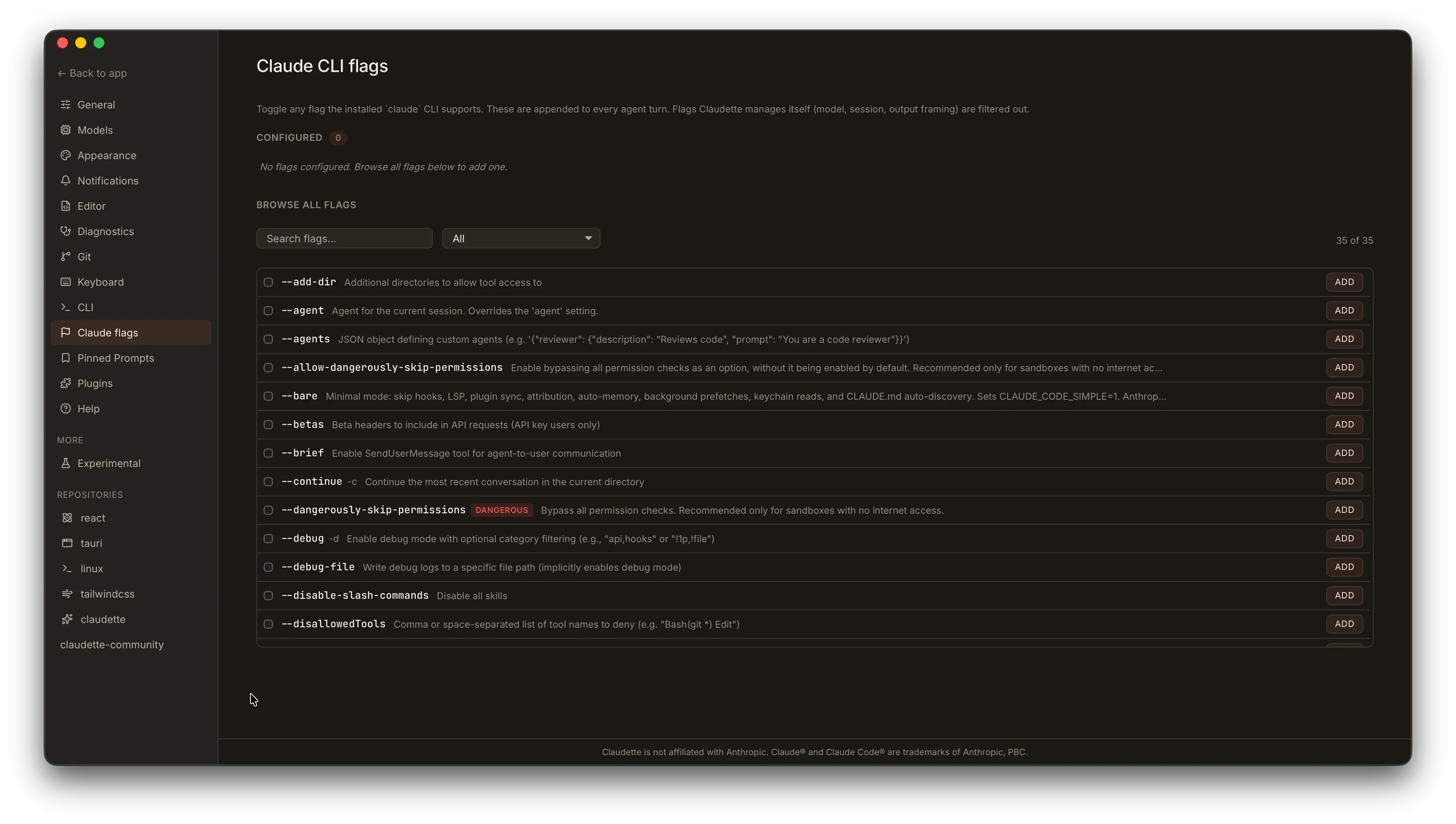
Section titled “Claude CLI Flags”The Settings > Claude CLI flags panel lets you configure which flags Claudette passes to the claude CLI on every turn. Flags are discovered at startup by parsing claude --help; flags that Claudette already controls internally (model, session ID, etc.) are filtered out so you can’t accidentally double-set them.
Global defaults
Section titled “Global defaults”Each flag row shows:
- Toggle — enable or disable the flag for every turn in every workspace.
- Value field (value-taking flags only) — the argument to pass, e.g. a permission scope string for
--permission.
Only enabled flags are appended to the claude invocation. Disabled flags are omitted entirely — Claudette never synthesizes a --no-* form on your behalf. If you need to pass an explicit negation (e.g., --no-foo), enable that negation flag directly from the list if the Claude CLI exposes it as a distinct flag.
Per-repo overrides
Section titled “Per-repo overrides”Repo settings (Settings > Repository > Claude CLI flags) add a third state to each flag:
| State | Behavior |
|---|---|
| Inherit | Uses the global default for this flag |
| Force on | Flag is enabled for all workspaces in this repo, regardless of global |
| Force off | Flag is disabled for all workspaces in this repo, regardless of global |
An override only takes effect when explicitly set — unset repo fields fall through to the global value. See Per-Repo Settings for details.
Chat header chip
Section titled “Chat header chip”The turn banner in the chat timeline shows the model, effort level, and any non-default CLI flags as structured chips, so the active configuration for each turn is always visible without opening settings.
Agent Providers
Section titled “Agent Providers”Claudette can run agents against additional providers — Ollama (local, Anthropic-wire), OpenAI (remote, gateway-translated), or Codex — instead of the official claude CLI. These providers are configured in Settings > Models; Codex and Ollama are auto-detected and their model lists refreshed on startup when available, unless you manually turn them off.
Several chat-header toggles on this page only apply to certain providers. The capability matrix in the dedicated section shows the full picture, but the highlights:
- 1M-context auto-upgrade — Anthropic only.
- Effort — Anthropic and Codex.
- Fast mode — Anthropic and Codex.
- Extended thinking — Anthropic and Ollama (when the model supports it).
- Unsupported toggles — hidden on providers that do not advertise the matching capability. Local models and gateway OpenAI implement these knobs inconsistently or not at all, so the chat header hides them rather than silently ignoring user intent.
→ Full setup, capability matrix, and per-provider instructions: Agent Providers
Forward/backward compat: warning banner in Models
Section titled “Forward/backward compat: warning banner in Models”If you switch between build channels (e.g. nightly → stable, or run two builds against the same data directory), a newer build can write a backend entry whose kind an older build doesn’t recognize yet. When that happens, Settings → Models shows an accent-tinted warning banner (the exact color depends on the active theme) naming the offending entry — your config isn’t lost. The unknown entry is preserved as opaque JSON in your settings and reactivates automatically on a build that knows it. Saves from the older build splice the unknown entry back into the stored blob, so a downgrade-and-re-upgrade cycle is non-destructive.
File References (@-mentions)
Section titled “File References (@-mentions)”Type @ in the chat input to reference specific files in your workspace. A file picker appears showing matching files — select one to include it as context for the agent. Exact filename and path substrings rank first, and abbreviations or skipped-character queries can still match as ordered subsequences (for example, cpanel can find ChatPanel.tsx).
This is useful for directing the agent’s attention to specific files:
“Review the error handling in @src/api/handler.ts and suggest improvements”
Default Settings
Section titled “Default Settings”Configure defaults for all new sessions in Settings > Models:
| Setting | Description | Default |
|---|---|---|
| Default model | Model used for new chats | — |
| Default effort | Reasoning effort level | Auto |
| Default thinking | Enable thinking blocks | Off |
| Show thinking blocks | Display thinking in UI | Off |
| Default plan mode | Start new sessions in plan mode | Off |
| Default fast mode | Use fast mode | Off |