Pinned Prompts
Pinned prompts are named shortcuts that appear as clickable pills above the chat composer. Use them to send recurring instructions, slash commands, or multi-line prompts in a single click — without retyping or scrolling through history.
The Prompt Bar
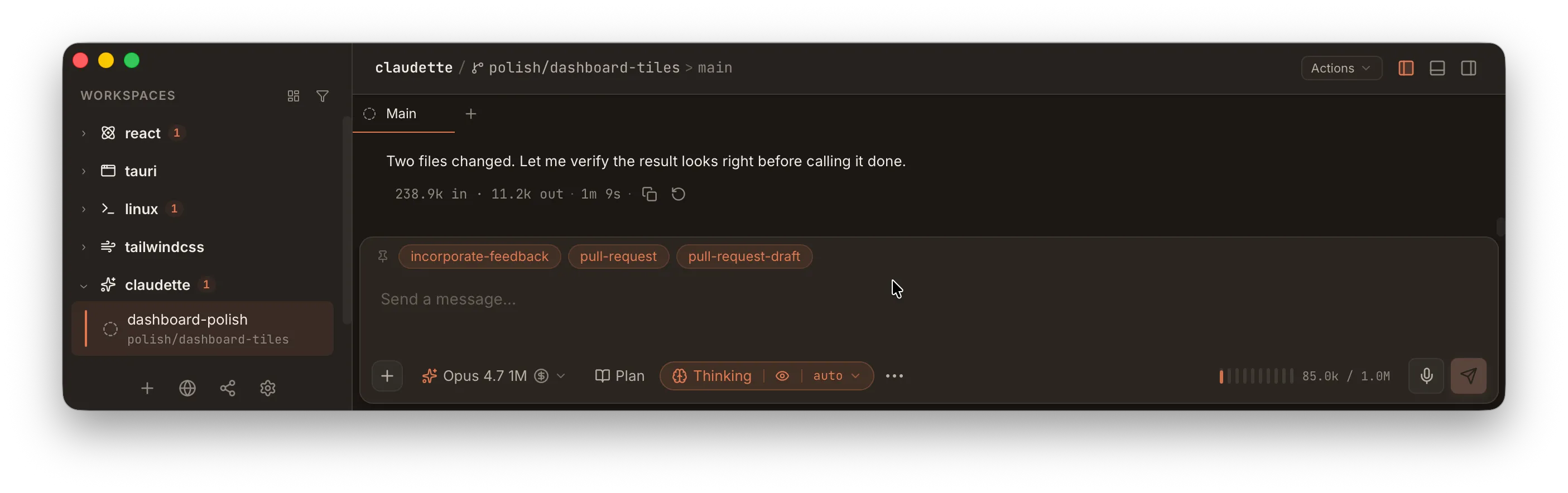
Section titled “The Prompt Bar”When at least one pinned prompt is configured, a row of pills appears above the chat input. Each pill shows the prompt’s display name. Clicking a pill either sends the prompt immediately or inserts it into the composer, depending on whether Auto-send when clicked is enabled.
Auto-send vs Insert
Section titled “Auto-send vs Insert”Each pinned prompt has an Auto-send when clicked toggle (referred to as Auto-send below for brevity):
| Mode | Behavior |
|---|---|
| Auto-send on | Clicking the pill sends the prompt immediately, as if you had typed it and pressed Enter |
| Auto-send off | Clicking the pill inserts the prompt text into the composer so you can review or edit before sending |
Use auto-send for prompts you always want to run as-is. Leave it off for templates you customize each time.
Toolbar Overrides
Section titled “Toolbar Overrides”Each pinned prompt can also carry an opinion about the four chat-toolbar toggles:
- Plan mode
- Fast mode
- Thinking
- Claude in Chrome
Each override is tri-state: Inherit, On, or Off.
The Plan mode override follows the active runtime: Claude-compatible sessions start with Claude Code’s plan approval flow, while Codex Native sessions start with Codex’s plan collaboration mode.
| Setting | Behavior on click |
|---|---|
| Inherit (default) | The toolbar toggle is left at whatever you’ve selected for the session |
| On | The toolbar toggle is flipped on before the prompt runs |
| Off | The toolbar toggle is flipped off before the prompt runs |
Overrides are applied to the live toolbar — the change is sticky, not per-turn. After clicking the pinned prompt, the toolbar shows the new state and follow-up turns inherit it until you flip the toggle back yourself.
A typical use: an “Incorporate feedback” prompt that must run outside plan mode can pin Plan mode: Off, so clicking the pill always disables plan mode before sending — even if you forgot the toolbar was still on plan.
Overrides apply whether Auto-send is on or off. With auto-send off you’ll see the toolbar update before you edit the inserted prompt.
Launch Options
Section titled “Launch Options”Beyond the toolbar toggles, a pinned prompt can decide where it runs and on which model. Both live under Launch options in the prompt editor and are independent of each other.
Open in a new tab
Section titled “Open in a new tab”With Open in a new tab enabled, clicking the pill:
- Creates a fresh chat session in the current workspace
- Names that tab after the prompt’s display name
- Applies the prompt’s toolbar overrides and model to it
- Switches to it and runs the prompt there
The tab you clicked from is left untouched — its conversation, toolbar state, and any in-progress turn all continue undisturbed.
Because the tab is explicitly named after the prompt, Claudette’s automatic session naming is skipped for it. You can still rename it by double-clicking the tab.
With Auto-send off, the new tab opens with the prompt text already in its composer instead of sending it.
The Model dropdown selects a model before the prompt runs. Leave it on Inherit (don’t change) — the default — for the prompt to use whatever model the target session already has.
| Combination | What happens |
|---|---|
| Model + new tab | The fresh tab starts on that model. Nothing to migrate, so switching backends here is free |
| Model, no new tab | The active session switches models before the prompt runs — exactly like the /model slash command, including its context handling |
Switching model in the active session follows the same rules as the toolbar picker: a swap within the same runtime (say Opus to Sonnet) keeps the conversation, while a swap across runtimes (say Claude Code to Codex) carries the prior turns over as a summary prelude.
If a pinned prompt’s model becomes unavailable — you disabled its backend, or the provider stopped offering it — the prompt still runs, on the session’s own model. The editor keeps your choice and flags it as unavailable so re-enabling the backend restores it.
Using ”/” in Prompt Bodies
Section titled “Using ”/” in Prompt Bodies”When creating or editing a pinned prompt, the prompt body field supports the same / slash command picker as the main chat composer. Type / to open the picker and select a command to insert it.
This lets you build prompts that combine slash commands with custom context — for example, a “Review changes” prompt that runs /review followed by project-specific instructions.
Global Prompts
Section titled “Global Prompts”Global pinned prompts appear in every repository. Manage them at Settings → Pinned Prompts.
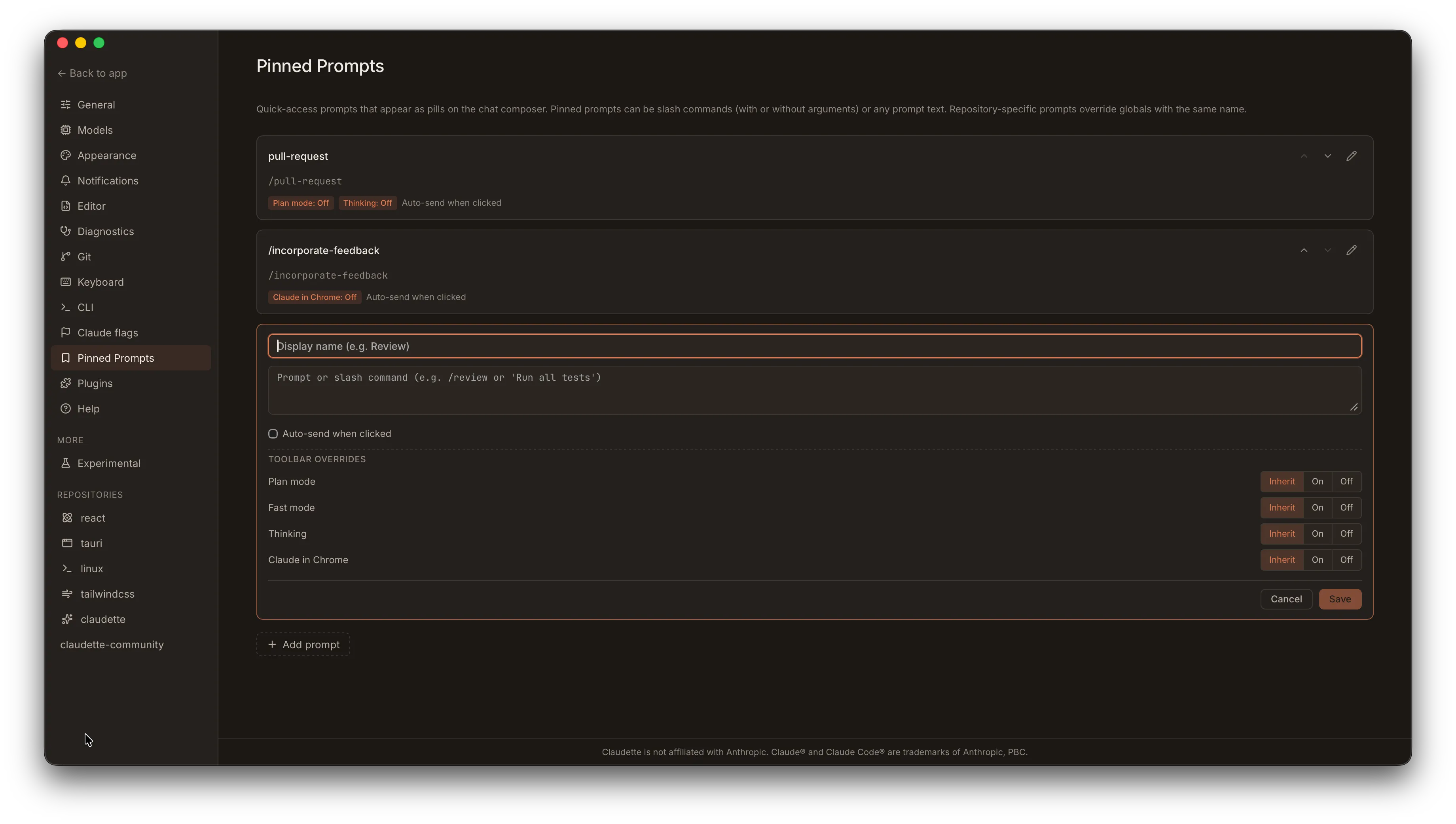
To create a global prompt:
- Open Settings → Pinned Prompts
- Click Add prompt
- Enter a Display name (shown on the pill) and the Prompt body
- Toggle Auto-send on or off
- Under Toolbar overrides, set each toggle — Plan mode, Fast mode, Thinking, Claude in Chrome — to
Inherit,On, orOff(see Toolbar Overrides above; leave them onInheritif the prompt doesn’t care) - Under Launch options, optionally enable Open in a new tab and pick a Model (see Launch Options above)
- Click Save
Use the ↑ and ↓ buttons to reorder prompts within the list. Order is preserved in the pill bar.
In the prompt list, a prompt that forces any toggle shows small chips (e.g. Plan mode: Off) next to its name, alongside the Auto-send indicator. Launch options get their own chips — New tab and Model: <id>.
Repo-Specific Prompts
Section titled “Repo-Specific Prompts”Each repository can have its own pinned prompts that appear only when working in that repo. Manage them at Settings → [Repository Name] → Pinned Prompts.
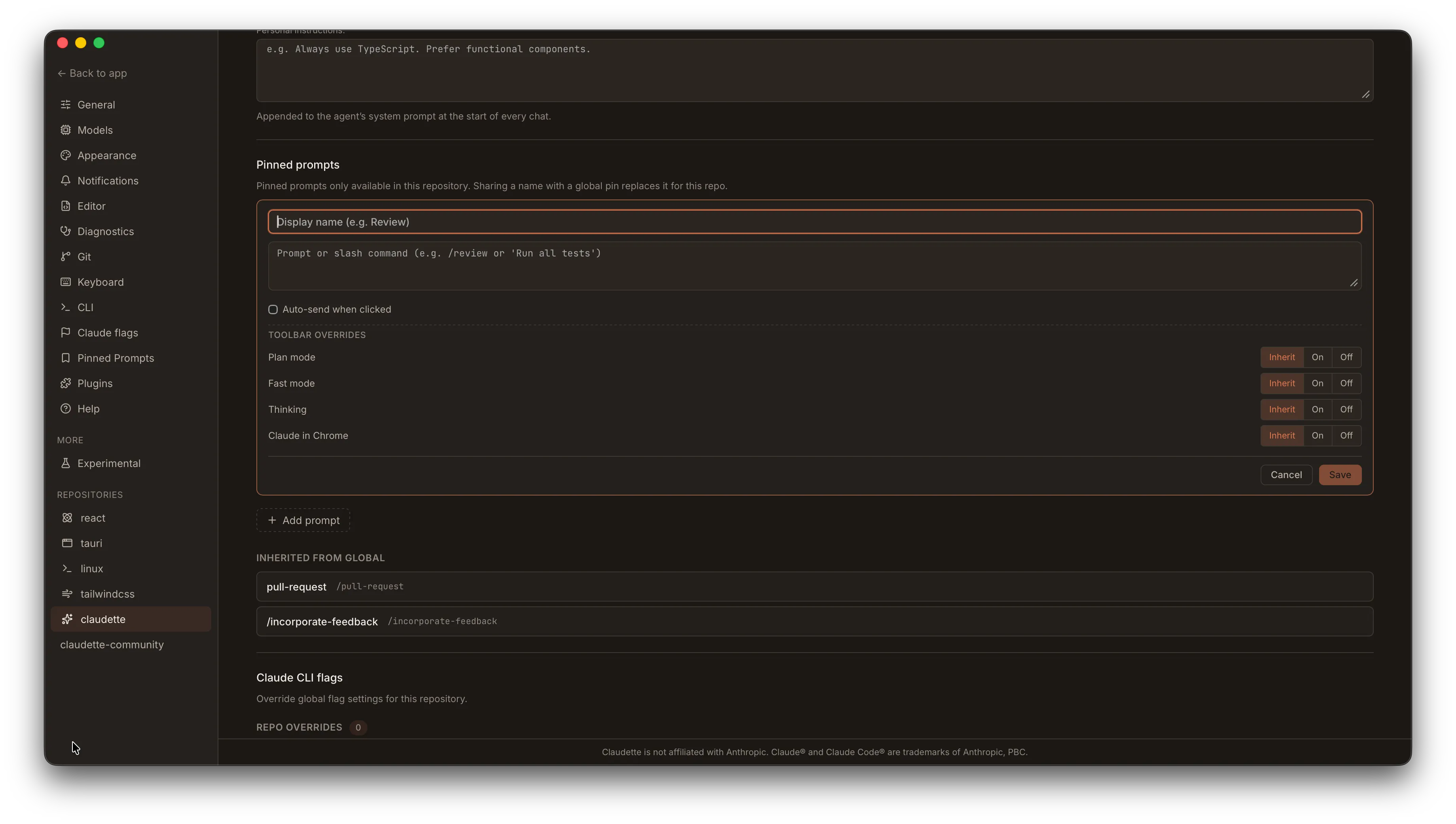
Repo prompts appear before global prompts in the pill bar. See Per-Repo Settings for other repository-level configuration.
Inheritance and Overrides
Section titled “Inheritance and Overrides”Repositories inherit all global pinned prompts automatically. If a repo defines a prompt with the same display name as a global prompt, the repo’s version takes precedence and the global one is hidden.
In repo settings, inherited global prompts are listed below the repo-specific prompts. Any global prompt that is being overridden by a repo prompt of the same display name shows an Overridden badge.
This lets you define a common baseline globally while tailoring specific prompts per project — for example, a global “Run tests” prompt that a repo overrides with its specific test command.