
Notifications & Sound Packs
Claudette has a customisable notification system built around the moments when you actually want the app to grab your attention — when an agent needs your input, when a task finishes, when something goes wrong. You can pick a different sound for each kind of event, or swap the entire sound palette out for an OpenPeon community sound pack.
Notification Events
Section titled “Notification Events”Five distinct events can trigger a sound:
| Event | Setting key | Fires when… |
|---|---|---|
| Input required | notification_sound_ask | The agent is waiting on you (e.g. an AskUserQuestion or plan-mode approval). |
| Plan acknowledged | notification_sound_plan | A plan you submitted has been accepted by the agent. |
| Task complete | notification_sound_finished | The agent has finished its turn. |
| Task error | notification_sound_error | The agent run failed. |
| Session start | notification_sound_session_start | A new agent session has been kicked off. |
Each event has its own dropdown — you can mix and match freely, or set them all to the same sound.
Where to Configure
Section titled “Where to Configure”Open Settings > Notifications. You’ll find:
- A sound source toggle (system sounds vs. OpenPeon sound pack)
- A volume slider (0–100%)
- A mute switch (kills all notification audio without losing your selections)
- One dropdown per event listed above
- An OpenPeon sound pack browser when sound source is set to OpenPeon
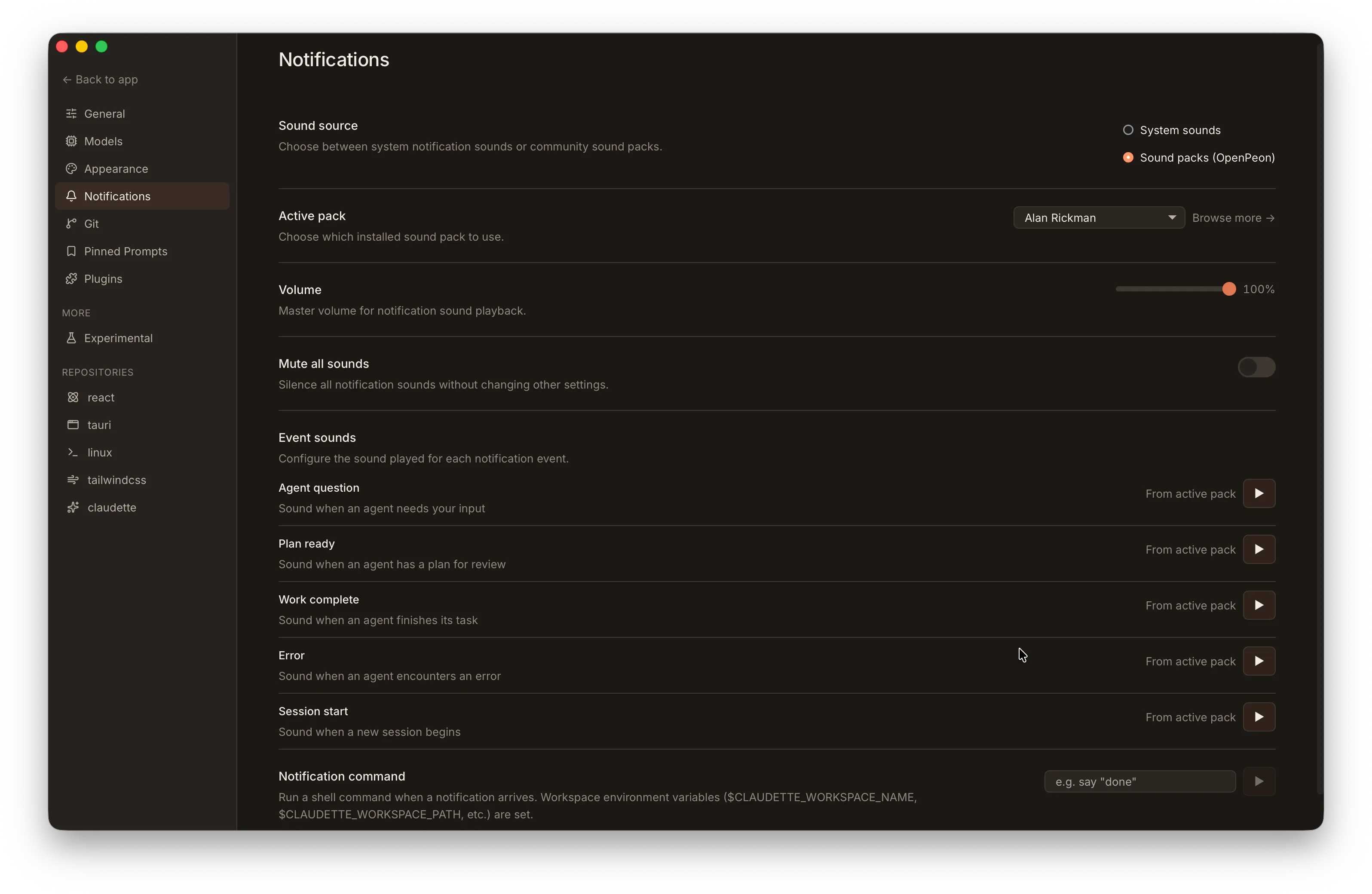
Per-Event Sound Resolution
Section titled “Per-Event Sound Resolution”When Claudette decides what sound to play for an event, it walks a small fallback chain:
- The per-event setting (e.g.
notification_sound_finished) - The global notification sound, if set
- The legacy
audio_notificationstoggle, if it’s set tofalse(silences notifications) - The built-in Default sound
This means an unconfigured event always falls back to something sensible — you don’t have to set every dropdown for the system to work.
OpenPeon Sound Packs
Section titled “OpenPeon Sound Packs”OpenPeon is a community sound-pack registry. Each pack ships a set of category-tagged sound files that map onto Claudette’s notification events (input.required, task.acknowledge, task.complete, task.error, session.start).
Switching the sound source in Settings to “OpenPeon” reveals a pack browser that lets you:
- Search the public registry by name, language, or category
- Install a pack (Claudette downloads a tarball of the pack’s source ref from GitHub and extracts it locally)
- Update an installed pack by re-downloading its current source ref
- Delete an installed pack
- Switch the active pack from the list of installed ones
The relevant settings keys (for the curious) are cesp_active_pack, cesp_volume, and cesp_muted.
Recommended Packs
Section titled “Recommended Packs”We maintain two community packs that pair well with Claudette’s defaults — both are listed in the OpenPeon registry and discoverable in the in-app browser:
- Alan Rickman — voice clips from the late great Alan Rickman.
- Elise — a more melodic pack built around Beethoven’s Für Elise.
Tray and Native Notifications
Section titled “Tray and Native Notifications”Notification sound and any optional command run on the Rust side of the app, not in the webview. That matters in practice because macOS suspends webview JavaScript when the window is hidden — running on the Rust side means notifications still fire reliably when Claudette is minimised, hidden behind another app, or backgrounded into the system tray.
Native notifications are integrated with the system tray:
- macOS uses
mac-notification-sysfor click-to-navigate banners - Linux uses
tauri-plugin-notification - Windows uses the platform-native notification surface
The tray icon and sidebar also reflect unattended workspaces, so even with sound muted you’ll see a visual indicator when a workspace needs your attention.
Sound Playback by Platform
Section titled “Sound Playback by Platform”Sound playback is platform-specific and uses each OS’s native audio path:
- macOS — plays AIFF files from
/System/Library/Soundsviaafplay. The sound dropdown enumerates the same directory. - Linux — plays via
canberra-gtk-play(withpaplayas fallback) using freedesktop sound names. - Windows — has two paths depending on which kind of sound is playing:
- System sounds (the dropdown items resolved from
%WINDIR%\Media, typicallyC:\Windows\Media) play via thePlaySoundWWin32 API. “Default” maps to the system Notification Default alias, which respects whatever you’ve picked in Settings → System → Sound → More sound settings. PlaySoundW plays at the user’s system volume — fine for short beeps, no decoder cost. - OpenPeon sound packs decode in-process via
rodio(cpal + Symphonia). WAV, MP3, and OGG all work, and the volume slider attenuates per-call playback exactly the way it does on macOS / Linux.
- System sounds (the dropdown items resolved from
The split is intentional: short system beeps don’t need a decoder pipeline, and rodio is only spun up when a user actually opts into a sound pack.
Custom Notification Command
Section titled “Custom Notification Command”If you want a notification to fire your own script — pipe to a Slack webhook, blink a Hue bulb, anything — Settings → Notifications has a custom command field. Claudette runs the command when a notification fires, with a small set of environment variables describing the event.
The command runs in your platform’s default shell:
- macOS / Linux —
sh -c "<your command>" - Windows —
cmd.exe /S /C "<your command>". If you need bash semantics, just call it explicitly:bash -c "..."(e.g. via Git Bash or WSL).
This is independent of the sound system: you can use it together with sound packs, or instead of them.